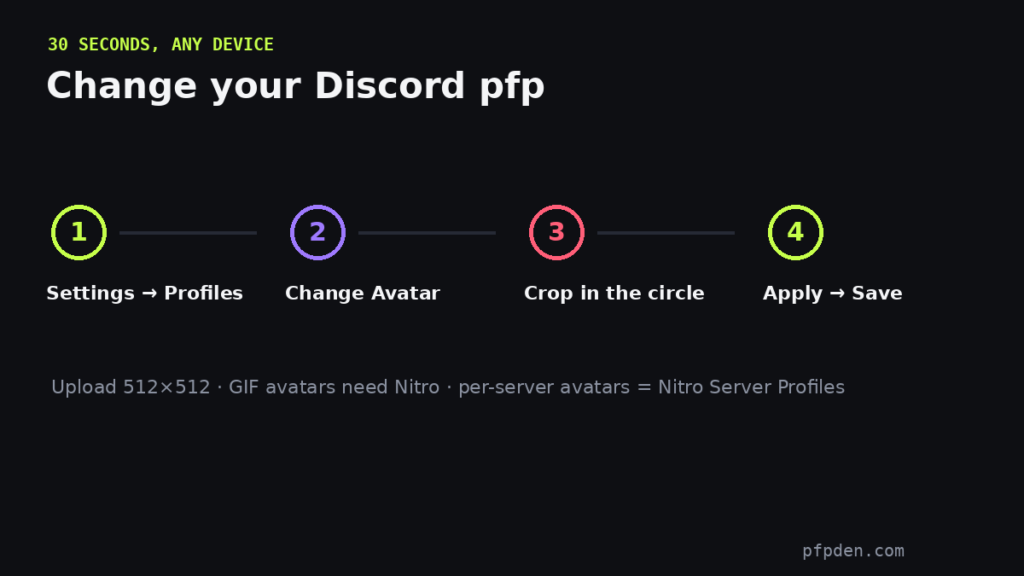
Changing your Discord pfp takes under a minute on any device. Here is every path, plus the two things that confuse people: per-server avatars and the circle crop.
On desktop
User Settings (gear icon, bottom-left) → Profiles → Change Avatar → pick your image → drag the crop circle → Apply, then Save Changes. If the crop keeps cutting your image off, prep it first in the PFP Maker — zoom the whole picture into the circle there and upload a ready 512×512 square.
On mobile
Tap your avatar (bottom-right) → tap the avatar again on your profile → Change Avatar → choose from gallery → adjust → save. Same circle rules apply.
A different pfp per server
Nitro users can set a Server Profile: inside any server, Settings → Profiles → Server Profiles tab → pick the server → upload a separate avatar just for it. Handy for keeping a professional avatar in one server and a funny one everywhere else.
The rules worth knowing
Upload at 512×512 for the sharpest result; animated GIF avatars need Nitro; and if Discord shows the old avatar after saving, it is cache — restart the app. Need a picture worth switching to? Every pack on pfpden is original and free.
FAQ
How do I change my pfp on Discord mobile?
Tap your avatar bottom-right, tap it again on your profile, choose Change Avatar, pick an image, adjust the crop and save.
Why is my Discord pfp not changing?
Usually cache — restart Discord. If the save button never appeared, the crop step wasn’t confirmed.
Can I have a different pfp in each server?
Yes, with Nitro: Settings → Profiles → Server Profiles lets you set a separate avatar per server.